





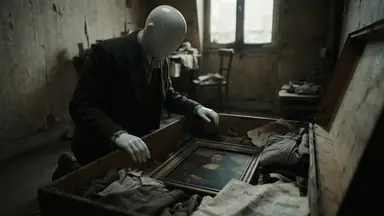


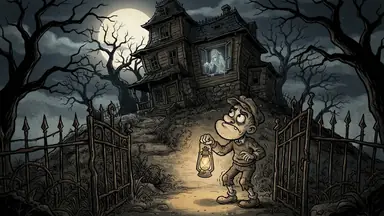




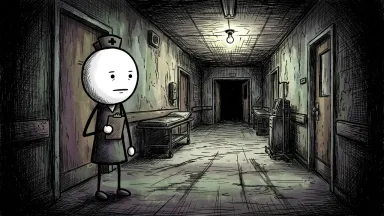






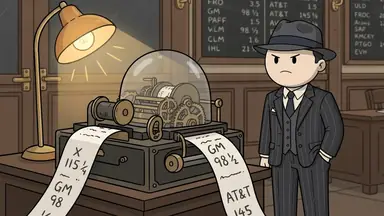

To make YouTube videos with Claude, add ClipFlux to Claude as a custom connector (an MCP server) and ask for a video in the chat. Claude cannot draw scenes, record a voice-over or render a video by itself. With ClipFlux connected it can: ClipFlux writes the script from your topic or takes the one you wrote with Claude, draws every scene in the look you pick, adds a narrator and captions, and can post the finished video to your YouTube channel. It works on claude.ai, Claude Desktop, the Claude phone app and Claude Code, and the same address works in ChatGPT. Setup takes five steps and nothing to install.
ClipFlux in Claude, in short
- What it is: a remote MCP server at
https://mcp.clipflux.ai/mcp. You add it once, sign in with your ClipFlux account and press Allow. - What it makes: vertical YouTube Shorts and long 16:9 YouTube videos planned in chapters, each with an AI narrator and captions.
- Looks: a card in the chat shows every ClipFlux look with its real cover, then the narrators with samples to play. You can also describe a look of your own and have ClipFlux design it.
- Script: ClipFlux writes it, or you write it with Claude. Either way you can change any line before anything is drawn.
- Cost: your ClipFlux credits, as on the site. The price shows on the Make button before anything is spent, and nothing is bought inside the chat.
- After it is made: redraw one scene from a note, change captions, music or cuts by asking, export the MP4, get title options, a description and tags, and post to YouTube now, at a time or after the export, as public, unlisted or private.
- Not yet: posting to TikTok from the chat.
What you need
- A Claude account. A free Claude plan allows one custom connector, so you do not need a paid plan for this.
- A ClipFlux account to sign in with during setup (you can create one first).
- To post from the chat, a YouTube channel linked on clipflux.ai (Settings, Connected platforms). Making and exporting videos works without one.
Step 1: Open Connectors in Claude
In Claude, open Customize, then Connectors.
Step 2: Add a custom connector
Press + Add, then Add custom connector.
Step 3: Paste the ClipFlux address
Name it ClipFlux, paste https://mcp.clipflux.ai/mcp as the MCP server URL and press Continue, then Add.
Step 4: Connect and sign in to ClipFlux
Press Connect, sign in to ClipFlux and press Allow. ClipFlux only receives what Claude sends to do what you asked, such as a topic, a script or an edit. Never your other chats or Claude's memory.
Step 5: Ask Claude for a video
In a chat, ask for a video. When Claude asks to use ClipFlux, press Allow. Say whether you want a Short or a long video and what it is about. Requests that work:
- "Make a 30-second YouTube Short with ClipFlux about why octopuses have three hearts."
- "Make a long YouTube video with ClipFlux about the Halifax Explosion, in chapters."
- "Make one like this with ClipFlux" with a YouTube or TikTok video link, or a YouTube channel link. ClipFlux reads its format, never its words, and makes a video of your own (reading a link uses a few credits).
What happens after you ask
- Look and narrator. Claude shows the ClipFlux card with every look and its real cover, then the narrators with samples to play. Pick one of each.
- Script. ClipFlux writes it from your topic (best for long videos and anything with facts), or you write it together with Claude. It goes into the ClipFlux script box, where you can change any line. Writing the script uses a few credits; nothing is drawn yet.
- Make. The card shows the length, the price on the Make the video button and your credits. Check names, dates and numbers first, because AI scripts can get facts wrong, then press Make the video.
- Fix. Ask for a new picture for one scene with a note ("make it night"), or new words for one line. Captions, music, cuts, text on screen and speed change from one message, for free.
- Export. Claude exports the final MP4, and the card plays it with a download link.
- Upload details. Claude writes title options, a description and tags from the script. For a long video it also suggests thumbnail ideas and draws the ones you pick.
Posting to YouTube from Claude
Once your channel is linked on clipflux.ai, ask Claude to post the video. Claude first shows a post card with the YouTube channel, the description, when it goes out and who can see it: public, unlisted (only people with the link) or private. It asks you whether the video is made for kids, and it posts only after your yes. It can post now, at a time you pick, or as soon as the export is done, and a scheduled post can be cancelled from the chat. Posting to TikTok from the chat is not available yet.
For a channel that posts by itself, ask Claude to create a ClipFlux Channel and switch on Autopilot: it makes and posts a video on the days and at the time you pick, spends credits each time, and keeps going until you switch it off. Claude asks for your yes before it switches Autopilot on, and where a Channel posts is set on clipflux.ai.
Claude Code: the same in a terminal
- In a terminal, run:
claude mcp add --transport http clipflux https://mcp.clipflux.ai/mcp - Start Claude Code and type /mcp, then pick ClipFlux to sign in.
- Sign in to ClipFlux in the browser that opens and press Allow.
- Ask Claude Code for a video; it answers with the script and links.
Claude Code shows text, not the ClipFlux card. Open the video on clipflux.ai to watch it.
ChatGPT works the same way
The same address works in ChatGPT as a plugin:
- In ChatGPT, open Plugins, press Add, then Add custom MCP server.
- Name it ClipFlux and paste
https://mcp.clipflux.ai/mcpas the Server URL. - Tick "I understand and want to continue" and press Create as a plugin.
- Press Connect ClipFlux, sign in to ClipFlux and press Allow.
- In a chat, ask @ClipFlux for a video.
Add it once on chatgpt.com and ClipFlux then works in the ChatGPT apps too. A worked example, from setup to a posted video, is How to make stickman videos in ChatGPT. Every setup, with the clips, is on the ClipFlux in ChatGPT and Claude page.
Disconnecting
On ClipFlux, open Settings, Connected apps and press Disconnect, or remove ClipFlux in Claude's own connector settings. Your videos stay in your ClipFlux account.
Without a connector
Claude on its own is still a good script writer. You can ask it for a script and scene-by-scene picture prompts, then draw the scenes in an image tool, record the voice in a text-to-speech tool and cut it together in an editor. That route is written up step by step in How to make faceless AI videos with ChatGPT, and it works the same with Claude. The connector does those steps for you inside the chat.
Questions
Can Claude make YouTube videos?
Not on its own: Claude writes scripts but does not draw scenes, record a voice-over or render a video file. With the ClipFlux connector added, Claude can make the whole video from the chat. ClipFlux writes the script or takes the one you wrote with Claude, draws every scene in the look you pick, adds a narrator and captions, and can post it to your YouTube channel.
What is the ClipFlux MCP server?
A remote MCP server at https://mcp.clipflux.ai/mcp. Claude calls it a custom connector. You add the address once, sign in with your ClipFlux account and press Allow. There is nothing to install.
Do I need Claude Pro to use ClipFlux in Claude?
No. A free Claude plan allows one custom connector, and ClipFlux can be that one. It works the same on claude.ai, Claude Desktop and the Claude phone app.
Can Claude post the video to YouTube?
Yes, once your YouTube channel is linked on clipflux.ai. Claude shows a post card with the channel, when it goes out and who can see it (public, unlisted or private), asks whether the video is made for kids, and posts only after your yes: now, at a time you pick, or as soon as the export is done. Posting to TikTok from the chat is not available yet.
Is it free?
There is nothing to install and nothing is bought inside the chat. Making a video uses your ClipFlux credits, as on the site: writing the script takes a few, nothing is drawn until you say make, and the price shows on the Make button before anything is spent. Captions, music, cuts, exporting, posting and the schedule are free. Prices are on the ClipFlux pricing page.
Does it work in Claude Code?
Yes. Run claude mcp add --transport http clipflux https://mcp.clipflux.ai/mcp, then type /mcp in Claude Code and pick ClipFlux to sign in. Claude Code answers with text and links instead of the ClipFlux card, so you open the video on clipflux.ai to watch it.
Does it work in ChatGPT too?
Yes. The same address works in ChatGPT as a custom MCP server: add it once on chatgpt.com and ask @ClipFlux for a video. It also works in other apps that connect to remote MCP servers with sign-in, such as Cursor or VS Code.