
To make a YouTube thumbnail with AI, start from your video, not from a blank canvas: pick the moment worth clicking, write three or four words that make the title land, and test more than one version. In ClipFlux that is the Thumbnail creator, built into Studio, the editor for long videos. It writes three title and thumbnail pairs from your script, gives each one a picture (a frame from your video, your own image, or a new drawing), lets you put the words, arrows and labels on top, and hands you all three for YouTube’s A/B/C test.
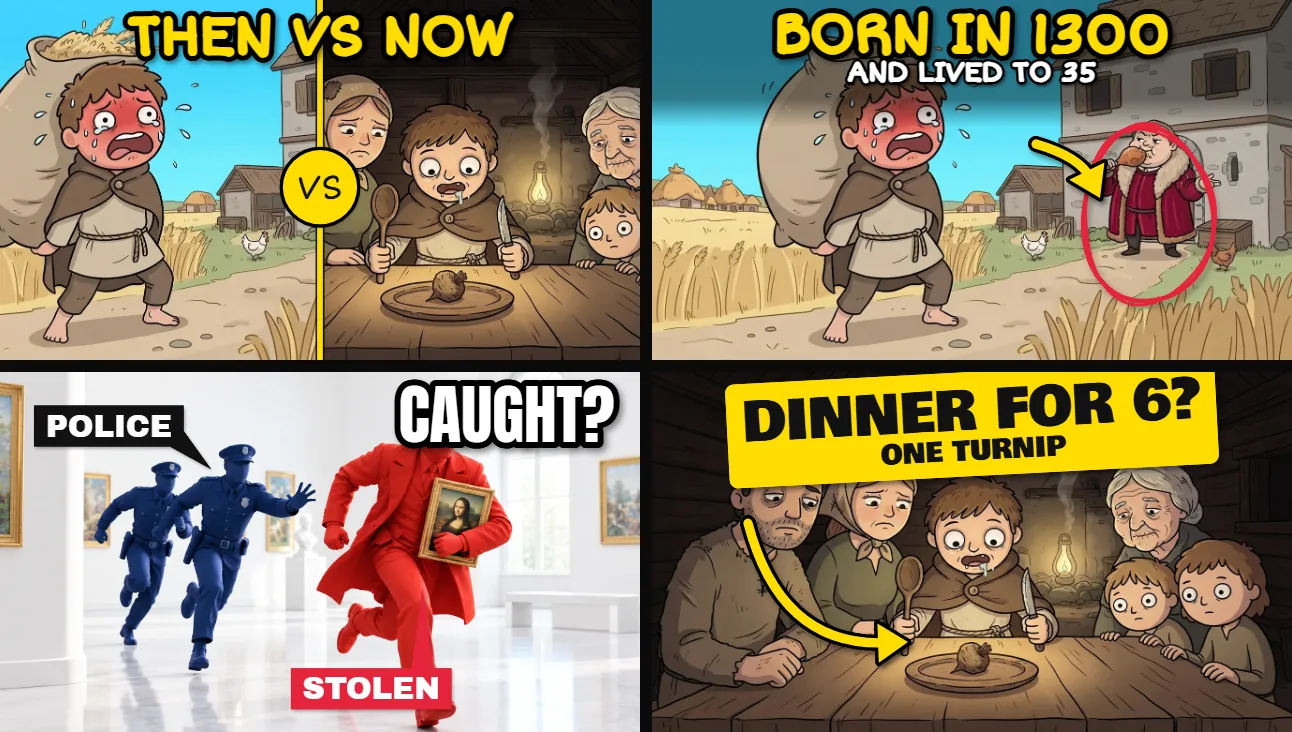
The ClipFlux thumbnail maker, in short
- It lives in Studio, on long (16:9) videos: open one and pick Thumbnail in the left bar. Shorts and a standalone version are not part of it yet.
- Three title and thumbnail pairs written from your script, each with its own angle.
- Four ways to get the picture: a frame from your video or your own image (both free), a new drawing of the scene, or a frame restyled brighter.
- A text editor with 11 fonts and any colour: outline, shadow, two lines, a smaller second line, a box behind the words, a tilt, and a dark band so they read on a busy picture.
- Arrows you can bend, labels with pointers, circles, check and cross marks, number badges, and your own images from your Uploads library.
- An A vs B layout: two pictures side by side with a VS badge or a line between them.
- A preview of all three at the sizes people see them, on a computer and on a phone.
- A download of the three as 1280 by 720 JPGs with their titles, ready for YouTube’s Test & Compare, or a post to YouTube from ClipFlux with the pair you choose.
Why the title and the thumbnail are one decision
A viewer sees the two together, in about the same glance, so they work as one message. The title says what the video is; the thumbnail shows why it matters right now. When they repeat each other, half the space is wasted. When the thumbnail’s words add a twist the title only hints at (“Born in 1300” over a title about medieval life expectancy), the pair says more than either could. That is why YouTube now tests titles and thumbnails together, and why ClipFlux writes them as pairs.
Step 1: Get three title and thumbnail ideas
Open a long video in ClipFlux Studio and pick Thumbnail in the left bar. Ask for three ideas and ClipFlux reads your script and writes three pairs: a title, the few words for the picture, and the scene the picture should show. Each pair leans on a different angle, such as the shock, the question or the person, so the test compares real alternatives rather than three spellings of the same idea. Every word is yours to edit. Writing the ideas is free.
Step 2: Give each idea a picture
The strongest picture is often already in your video. Pick a frame from a grid of every picture in it, or scrub the timeline to the moment. Upload your own image if you have a better one. Both are free. If no frame fits, draw a new picture from the scene in the video’s own look. And if a frame is right but too dark to pop in the feed, restyle it: the same scene, redrawn brighter and cleaner. Drawing and restyling use credits.

For a before-and-after or a this-or-that idea, switch the layout to A vs B: two pictures side by side, with a VS badge, a line or a clean cut between them, and each half cropped to the part that matters.
Step 3: Put the words and pointers on top
The words go on the picture in the editor beside it. Keep them short: the field holds 28 characters on purpose, because three or four words are all anyone reads in a feed. Pick a font that fits the look of the channel, a bright fill with a dark outline, and a size that still reads small. Add a smaller second line under it when the twist needs one (“and lived to 35”), or a dark band behind both when the picture is busy.
Then point at what matters. An arrow (drag its middle to bend it) or a circle sends the eye to the detail. A label with a pointer names a person or a thing. A check and a cross make a right-versus-wrong at a glance, a badge counts (“#1”, “$5”), and your own image, a logo or a cut-out face from your Uploads, can go anywhere on it. Everything is dragged into place on the picture itself.
Step 4: Check them at feed size
A thumbnail that looks good at full size can fall apart at the size people actually see it. Before you choose, look at all three in the feed preview: the home feed on a computer, a phone, and the narrow Up next column. If the words blur or the face disappears at the smallest size, make the words bigger or fewer, or crop closer.
Step 5: Run the A/B/C test on YouTube
Download the pack: three JPGs at 1280 by 720 and a text file pairing each with its title. In YouTube Studio on a computer, open the video’s details and use Test & Compare to add up to three titles, thumbnails or both. YouTube shows the versions side by side to different viewers and picks the one with the best watch time share, not the most clicks, so a version that gets clicks but loses people early does not win. A test takes a few days and up to two weeks.
If you post to YouTube from ClipFlux, choose which pair the upload starts with: its title becomes the video title and its picture the thumbnail. The other two can be added to a test afterwards. Test & Compare needs the channel’s advanced features turned on, works on long videos only (not Shorts or videos made for kids), and custom thumbnails need a verified YouTube account. The details are on YouTube’s help page for testing titles and thumbnails.
What makes a thumbnail work in the feed
- One subject, big. A face or an object filling a third of the picture reads at any size; a wide scene does not.
- Three or four words, not the title. The words add what the title leaves out.
- Contrast over detail. Bright against dark, warm against cool. A muddy frame is what restyling is for.
- Point at the reason to click. An arrow or a circle on the one detail that makes the question.
- Test ideas, not shades. Three different angles teach you what your audience wants. Three versions of one picture usually end in a tie.
If you are still making the video itself, start with how to make long-form faceless YouTube videos with AI; the thumbnail is the last step of that workflow.
Questions
Where is the thumbnail maker in ClipFlux?
Inside Studio, the editor for long videos: open a long video and pick Thumbnail in the left bar. For now it works on long (16:9) videos, not Shorts.
Is the ClipFlux thumbnail maker free?
Writing the three title and thumbnail ideas is free, and so is using a frame from your video or an image you upload. Drawing a new picture or restyling one uses credits.
How does YouTube pick the winning title and thumbnail?
By watch time share, not clicks. Test & Compare shows up to three versions to different viewers for up to two weeks and keeps the one whose viewers watched the most.
Can I test the title and the thumbnail together?
Yes. YouTube Test & Compare tests titles, thumbnails or both, on long videos in YouTube Studio on a computer, with the channel’s advanced features turned on. Shorts and videos made for kids cannot be tested.
What size are the thumbnails?
1280 by 720 JPGs, the 16:9 shape YouTube uses. YouTube accepts any thumbnail at least 640 pixels wide, and custom thumbnails need a verified YouTube account.
Can I put two pictures side by side?
Yes. The A vs B layout splits the thumbnail in two, with a VS badge, a line or a clean cut between them, and you choose which part of each picture shows.